
Best Practices
Money-Saving Tips
Scenario 1
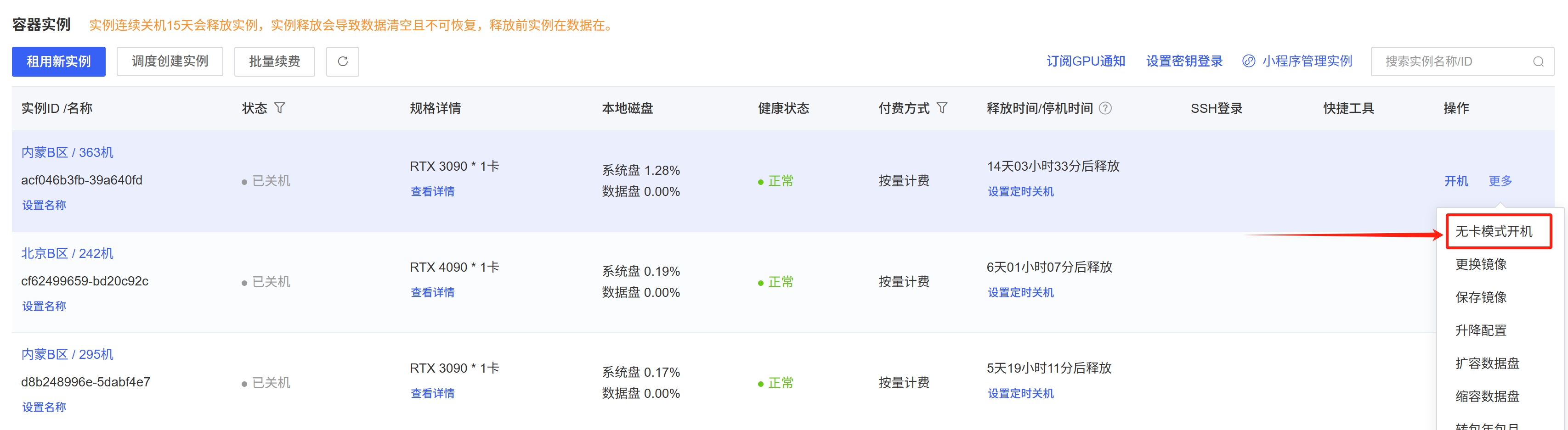
If you are writing or debugging code, uploading or downloading data to the instance, or demonstrating code to others—situations that do not require a GPU card—you can shut down the instance and then start it up using 无卡模式. The difference when starting up in GPU-less mode is that this session will use the configuration from 0.5核;2GB内存;无GPU卡.The price is uniformly set at ¥0.1 per hour, and this will not affect any data stored on the instance before or after the switch. You can continue to start and stop the instance in the normal mode as before. Instructions:
Only one cardless mode instance can be active per primary account at a time. Cardless mode releases the GPU, setting it to an idle state. During normal operation, if the GPU is rented by another user, there may be a shortage of available GPUs. In this case, you can wait for the GPU to be released or clone the instance.
Scenario 2
Initially, only one GPU is needed for code debugging and performance validation. However, once debugging is complete, multi-GPU parallel processing is required to accelerate training. In such scenarios, you can use the scaling feature to configure the appropriate number of GPUs to save costs. For instructions, see Scaling.
Scenario 3
If you’re unsure how long your code will take to complete and want to shut down the system immediately after it finishes, you can use the shutdown command (preferably with the full command path: /usr/bin/shutdown) to achieve this.
Please save the program logs; logs in standard output will no longer be visible after the system shuts down automatically.
# 假设您的程序原执行命令为
python train.py

# 那么可以在您的程序后跟上shutdown命令
python train.py; /usr/bin/shutdown      # 用;拼接意味着前边的指令不管执行成功与否,都会执行shutdown命令
python train.py && /usr/bin/shutdown    # 用&&拼接表示前边的命令执行成功后才会执行shutdown。请根据自己的需要选择
Alternatively, execute the shutdown command in your Python code, for example:
import os

if __name__ == "__main__":
    # xxxxxx
    os.system("/usr/bin/shutdown")